Credit to
Spica Nox because I made this blog post in relation to
Spica's blog post.
Operating System: Windows 7
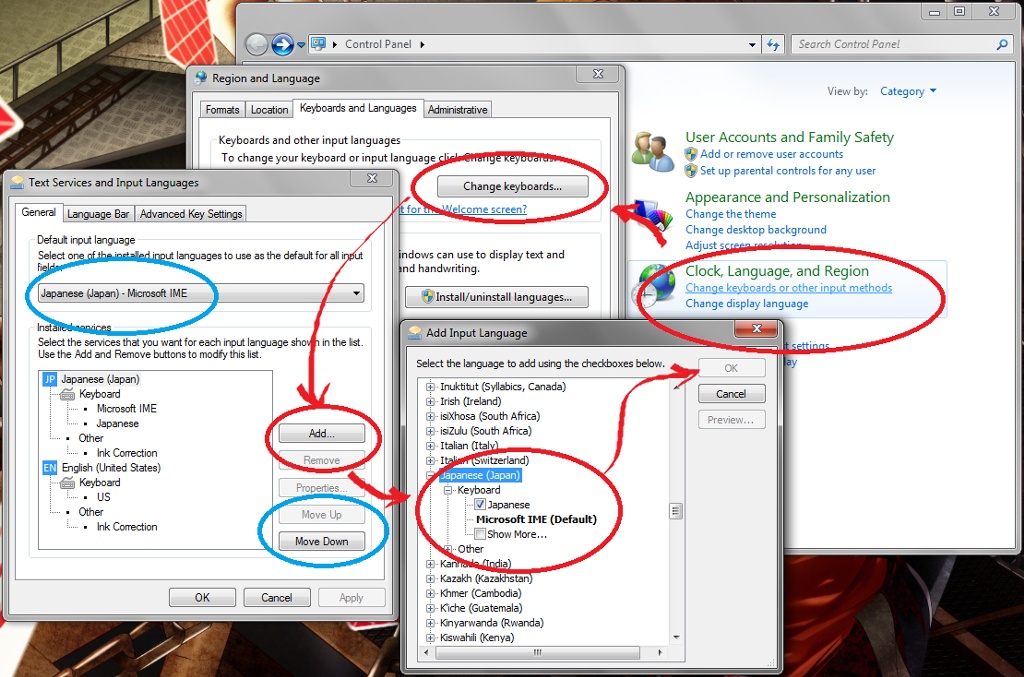
Instructions to activate Japanese IME:1) Go to
Control Panel.
2) Under
Clock, Language and Region, click
Change keyboards or other input methods.
3) On the
Keyboards and Languages tab, click
Change keyboards.
4) Under
General tab, click
Add.
5) In the list of MS IMEs, scroll down to
Japanese (Japan), check under
Keyboard and tick
"Japanese". Click
OK.
Optional: Move the Japanese IME up the list by clicking
Move Up.
Even if you activate Japanese IME, your PC will still follow its default region language. Follow one of the following to be able to use the IME in FFXIV.Two ways to use Japanese IME in FFXIV:Temporary: You will see the language bar on your taskbar or floating on the desktop. To temporarily use Japanese IME, make sure that the language bar is floating on your desktop
OVER the FFXIV client. Its usage will end when you shut down the FFXIV client.
Permanent: Refer to the first screenshot. Under Default input language, select Japanese. When your PC boots or any application opens, the default language will be Japanese. Don't worry, you won't always have to type in Japanese! If you click
Input Mode, you can choose
Half-width Alphanumeric to be able to type the English alphabet.
Japanese IME Input Modes:1) Hiragana - looks like this ひらがな。 It's the Japanese symbols for native words.
2) Full-width Katakana - looks like this カタカナ。Japanese symbols for foreign words.
3) Full-width Alphanumeric - looks like this.
4) Half-width Katakana - looks like カタカナ。
5) Half-width Alphanumeric - looks like this. The "normal" appearance.
Typing in FFXIV:You can test the IME usage on FFXIV by clicking ALT + TILDE (~) on your keyboard. It will toggle between the last two used input modes. For ease of use, set the Input Modes to Half-width Alphanumeric and Hiragana by switching between the two modes once. This will allow you to toggle between normal alphabet writing and kana (hiragana and katakana) writing just by clicking ALT + TILDE.
Shortcuts that I regularly use:ALT + TILDE = to toggle between the LAST TWO INPUT MODES; preferably Half-width Alphanumeric and Hiragana.
ALT + CAPS LOCK = to switch from Hiragana to Katakana (if toggle to Kana).
CTRL + CAPS LOCK = to switch from Katakana to Hiragana (if toggled to Kana).
SPACEBAR = after typing a Japanese word before you press Enter, it pulls up a list of suggested writings.
Things to remember:* Some characters look different if you type them in Hiragana! For example:
The tilde: ~ vs ~
The caret: ^ vs ^
The opening parenthesis: ( vs(
The closing parenthesis: ) vs )
The dash: - vs ー
The asterisk: * vs *
The period: . vs 。
* If you type a Japanese word and press Spacebar before you press Enter, you will see a list of suggested writings. Some of them, such as "hoshi" (star) which I typed in the screenshot, have recognizable appearances!
星(ほし) = ☆ ★ etc = hoshi means star
丸(まる) = ○ ● ◎ etc = maru means round
What's a Kaomoji?Kao 顔 + moji 文字 means "face" and "written character". Moji actually means something more confusing if taken literally, but it is supposed to refer to a written character instead of "personality/character". It can be taken to mean "written characters that resemble a face".
Indeed, kaomojis are more expressive than the usual emoticon or smiley. Emphasis is put on the overall expression including the eyes (*-*); as opposed to a smiley which emphasizes the movement of the mouth :D :( xD
It may take a lot of fiddling to get used to typing kaomojis. Of course, you could just put your kaomojis in macros or text files and copy them to your chat bars (*/ω\)
For any corrections, suggestions or questions, please reply concisely and I'll get to you as soon as possible! (English is not my native language thus long-winded questions may confuse me. I'm sorry!)